The missing link between inspiration and your sampler.
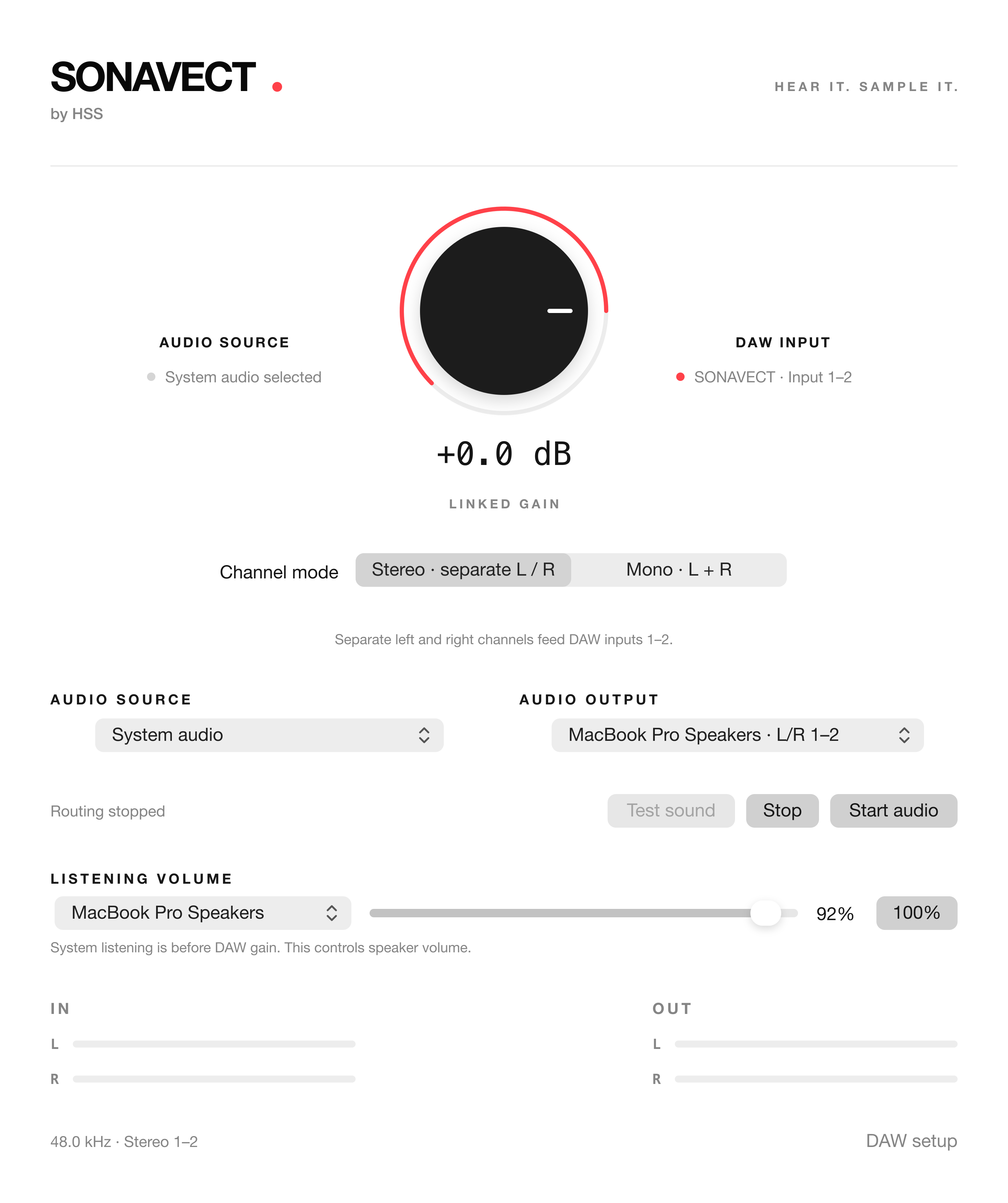
SONAVECT keeps the path simple: system audio comes in, a clean stereo signal goes out, and your sampling workflow keeps moving.
01
Direct system-audio routing
Choose SONAVECT as your Mac sound output, then select it as the stereo input inside your software sampler or DAW.
MAC AUDIOSONAVECTDAW
02
See the signal
Responsive input and output meters show exactly where audio is moving before you hit sample.
03
Linked stereo gain
Start at 0 dB, raise or lower the source gradually, and keep the left and right channels together.
04
Choose where you listen
Keep your DAW output on your speakers or audio interface while SONAVECT handles the incoming route. Clear monitoring, without a maze of virtual devices.
THREE STEPS
From browser to beat in seconds.
No patch cables, aggregate-device gymnastics, or oversized routing matrix.
1
⌁
MAC SOUND OUTPUTSONAVECT
✓
Send Mac audio to SONAVECT
Select SONAVECT as the sound output in macOS.
→
2
AUDIO INPUTSONAVECT 1–2
Choose it as your stereo input
In your software sampler or DAW, select SONAVECT on channels 1–2.
→
3
Find the signal. Start sampling.
Open SONAVECT, start the audio route, set your level, and capture the moment.
BUILT FOR DAWs. OPEN TO YOUR STUDIO.
Your audio. A clear connection.
SONAVECT works with desktop DAWs and software samplers that can accept a stereo audio input.
It creates a clear stereo route from audio playing on your Mac to a DAW or software sampler that can accept audio input.
Does it work with a software sampler?
Yes, if your software sampler accepts a stereo audio input. Select SONAVECT as the Mac output, then choose SONAVECT channels 1–2 as the input inside your software sampler.
Can I use it with my DAW?
Yes. SONAVECT can be used with desktop DAWs and samplers that allow you to select a stereo audio input.
Does SONAVECT record or add effects?
No. It stays focused on routing, gain, metering, and listening-output selection. Recording and processing remain inside your DAW.
What should I do if I hear echo or feedback?
Check that the same source is not being monitored twice. Keep your DAW output on your speakers or audio interface, and use one intentional monitoring path.
Is there a Windows version?
The first release is for macOS. Windows is planned for a later release.